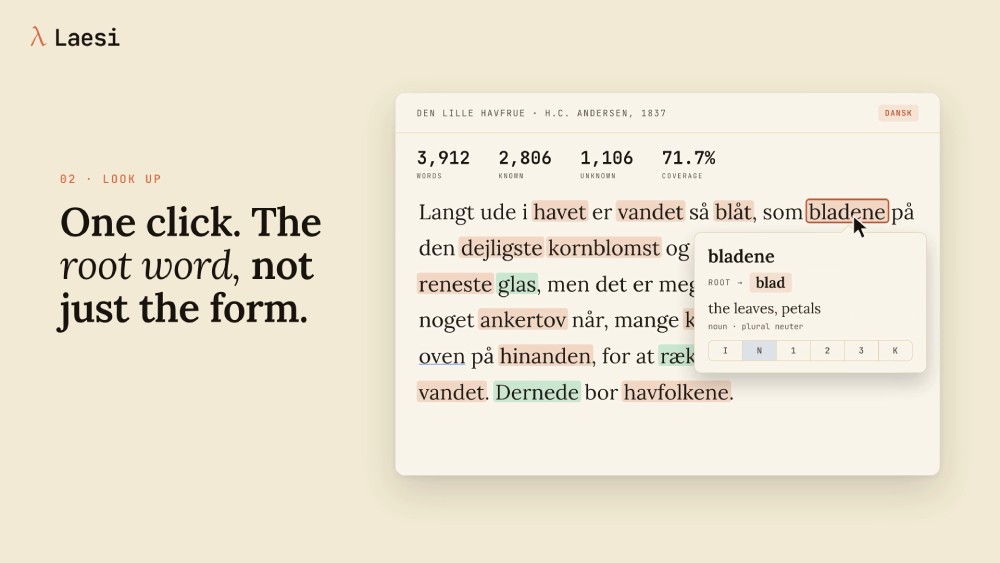
Can Claude Make Videos? How I Made an App Launch Video
In the past few months there has been a new wave of excitement in AI-assisted creative work, and this time it's video editing.
In particular, editors have started to use OpenAI's GPT-6 Astra model inside an NLE (non-linear editor) like Final Cut Pro or DaVinci Resolve. In the Final Cut Pro demos, Astra uses computer use: it clicks through the app like a human editor to import clips, sync audio, and color grade. With DaVinci Resolve, most editors connect Astra through an MCP server, which controls Resolve through its scripting API, so the model doesn't touch the interface at all.
I have some reservations about this. Like a lot of the early AI generative excitement (and then the fear for jobs), the reality is it's a fun tool, but it doesn't yet replace professional editing work. Following an editing process is not the same thing as making the creative calls about what to keep and what to cut.
But in this article I'm not going to touch on video editing with AI. I want to focus on making videos with Claude itself. Claude has never had true image or video generation abilities, so how does it make a video?
Can Claude generate video? What it can and can't make
If you've ever asked Claude to create an image, you know it can only write code. So you get an SVG that, while really cool, is not a raster image with pixels.
And that's exactly how Claude makes a video, except with more pizzazz. Claude builds every element of the video as a web page, writes the movement as code, and then renders that page frame by frame while it adds the audio. What you get is an MP4 video you can preview in Claude or download locally.
While this may seem like a limitation, it's actually super useful for professionals and builders. You won't get realistic videos of Will Smith eating spaghetti. Claude doesn't use a video generation model, so it can't create realistic footage or people. What you get instead is motion graphics and animation done well.
This is perfect for software. You can now make a product launch video, a feature demo, onboarding guides, dynamic presentations, and more.
I've spent years working in video production, so I can confidently say these kinds of videos can take weeks to produce. Heavy motion graphics work is expensive and time consuming. This is the part that Claude can now do in minutes.
You can still make your own screen recordings, you can still animate text slides, you can still use your creative muscles to come up with the ideas and critique the outputs.
But when you want to take a video to another level with motion, it's now easier than ever with Claude.
Is this Claude Motion? No
You might have heard of Claude Motion, which Anthropic launched in beta on October 8, 2026. It's a separate feature for Team and Enterprise plans. You start it from the Output menu or a Motion template, and you get a preview and an editor where you can change a word, a number, or the timing.
I didn't use Motion for this video, and my account doesn't have it. I used a regular Claude Project in the Claude desktop app. Claude wrote the video as code and rendered it in its own cloud workspace. Along the way it loaded Anthropic's built-in video-making skill, but that skill is only a short checklist of rendering practices. The animation, the music edit, and the sound effects all came from Claude's general tools.
Both routes work the same basic way: code draws the text, shapes, and images, and the result is rendered to an MP4 with no AI-generated footage. If you're on a Team or Enterprise plan, you can try Motion too. If you're not, you can still do everything in this post today.
Watch the walkthrough
Rather than just tell you how this works, I made a video walkthrough. For this example, I wanted to make a quick product launch video for my friend Toby Hillmann's app, Laesi.
Laesi is a language learning desktop app for Windows, Mac, and Linux, and it also comes with a browser extension. The focus is on proven learning methods (Toby has learned lots of languages himself), and also on languages that the big apps don't cover well, like Icelandic, Norwegian, Faroese, or Welsh.
Start with a Claude Project, not a chat
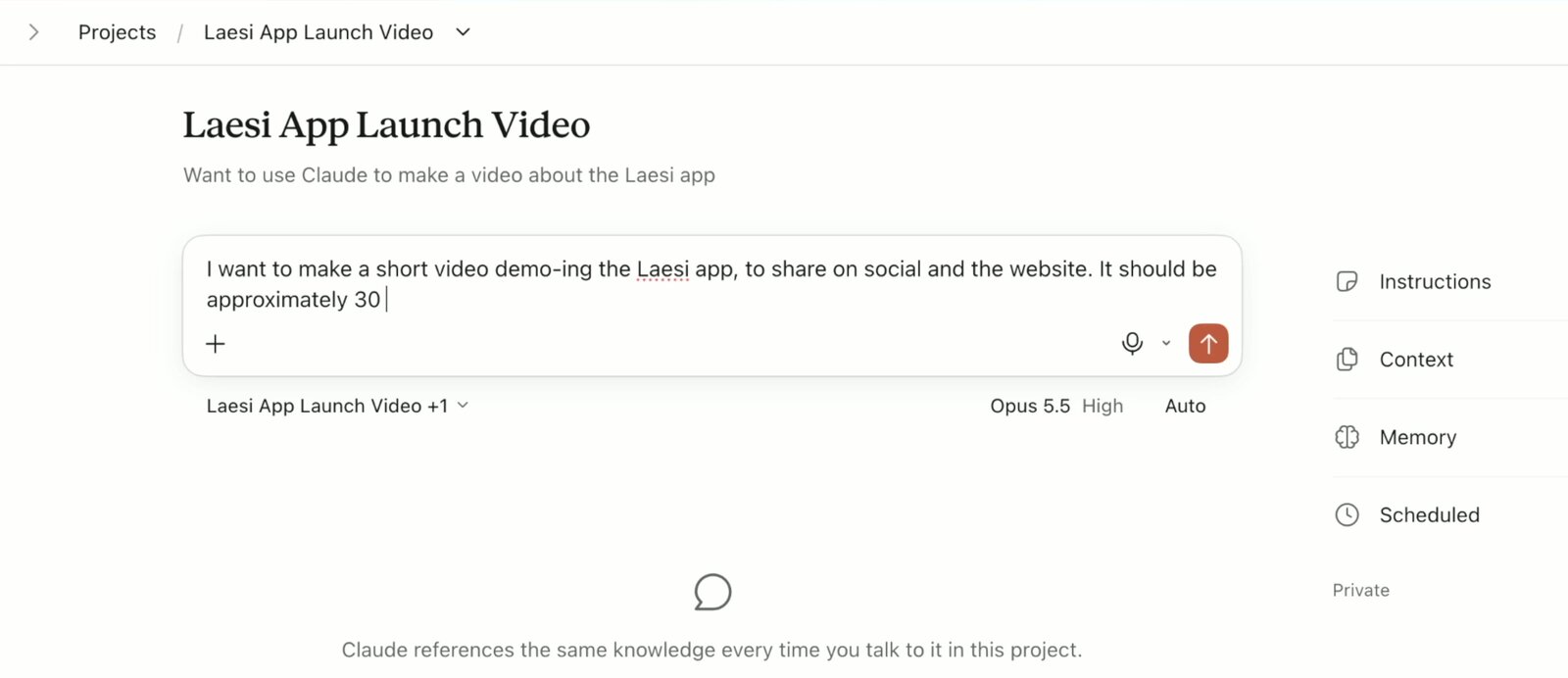
To get started, you want to create a project in Claude, and then feed it context. Why a project instead of a normal chat? Because if you want to come back and create more videos, you can build on the project's context, documents, and memory. The alternative is going back to the same conversation and blowing up its context window.
If you use Claude on a team, projects also help you share your work and let others take advantage of the context you've built.
For example, if you create a video project and give it your company brand guidelines, examples of other creative assets, fonts, images, screenshots, music, and goals, then you and your colleagues can keep making software videos over time without having to redo that initial knowledge setup.
In my example, I created a new project in the Claude desktop app and added the Laesi app folder from my Mac to the project context. I also gave Claude the Laesi website to look at. I asked it to follow the colors, fonts, and style that are already in the website and app.
That's all the setup I did. You don't need any plugins, skills, or other prep work to start. If you want to go further, add your brand guidelines and lots of screenshots to the project, or let Claude click through your app and capture what it needs.
One thing to know: Claude does all the heavy work in its own cloud workspace, a Linux sandbox where it installs the tools it needs. For my video that meant Python libraries for the music analysis and sound effects, a headless Chrome browser, and ffmpeg. On my Mac, Claude only read files from the Laesi folder, and at the end it saved the finished MP4s and the source files back to it. You don't need to install anything on your computer.
My first prompt was short: a demo video of the Laesi app for social and the website, about 30 seconds long, dynamic, with movement, showing the main features, and speaking directly to a language learner who wants rarer languages and proven learning methods.
Plan the script before you render anything
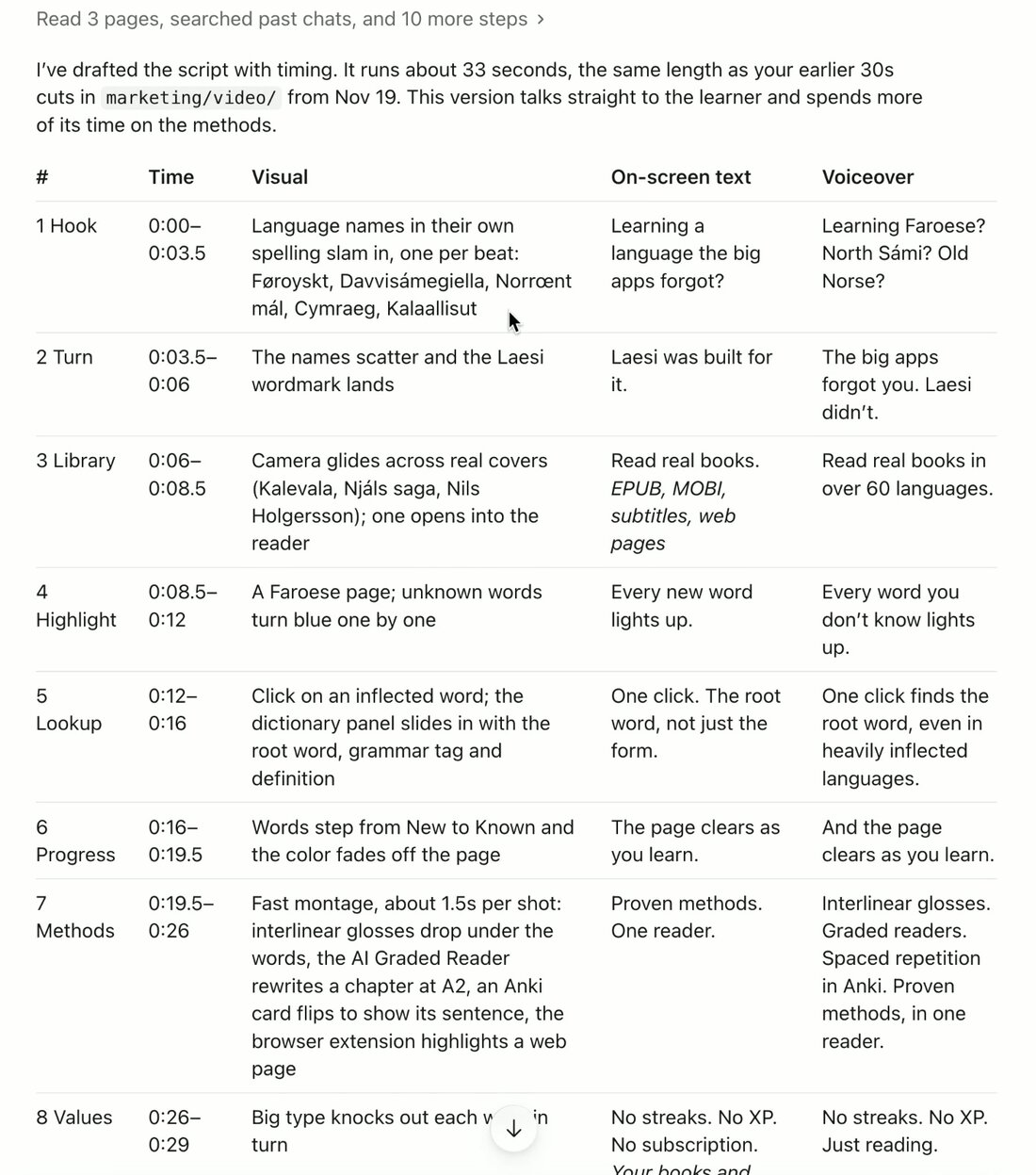
Once you add all your context, it's time to create your first video. I think it's best to nail the plan first, before you waste any time or tokens on the video generation itself. So I ended my first prompt with "First let's get the script and the timing, then the visuals." I picked Opus 5.5 on high effort and sent it.
Claude read the repo and laesi.com and came back about four minutes later with a timed script. Each beat had a time range, a description of the visual, the on-screen text, and a suggested voiceover line. It opens with language names like Føroyskt and Davvisámegiella slamming in on the beat, then moves through reading real books, highlighting unknown words, a one-click dictionary lookup, and the learning methods.
Work with Claude on this plan until it's right, complete with timing, visuals, and sound. Some questions to answer at this stage:
- Do you want a voiceover? Claude writes the lines, but it doesn't speak them. You record the voiceover yourself, or use a voice tool like ElevenLabs, and then give Claude the audio file.
- Do you want sound effects?
- Do you already have music, and if so, should Claude cut the edit to the track's beats?
I said no voiceover, but yes to the rest of the plan. If you do want one, record it after the script is final and before the first render, so Claude can time the visuals to it. I haven't tried that yet, but Claude cut my whole edit to a music file, so I expect a voiceover file to work the same way. Claude also saved the script as a document in the project, so the next video starts from it.
Let Claude cut the music to your video
One thing Claude does well is fit a music track to the length of the video. For example, if you have a 4-minute music bed and you're aiming for a 30-second video, you want the end of the video to land right where the music ends on its final note.
This is generally more powerful than just fading out, and it's a job that usually takes a lot of time to do by hand. You cut the track where you want the video to end, and then you have to match the beats somewhere in the middle and surgically remove a large part of the track.
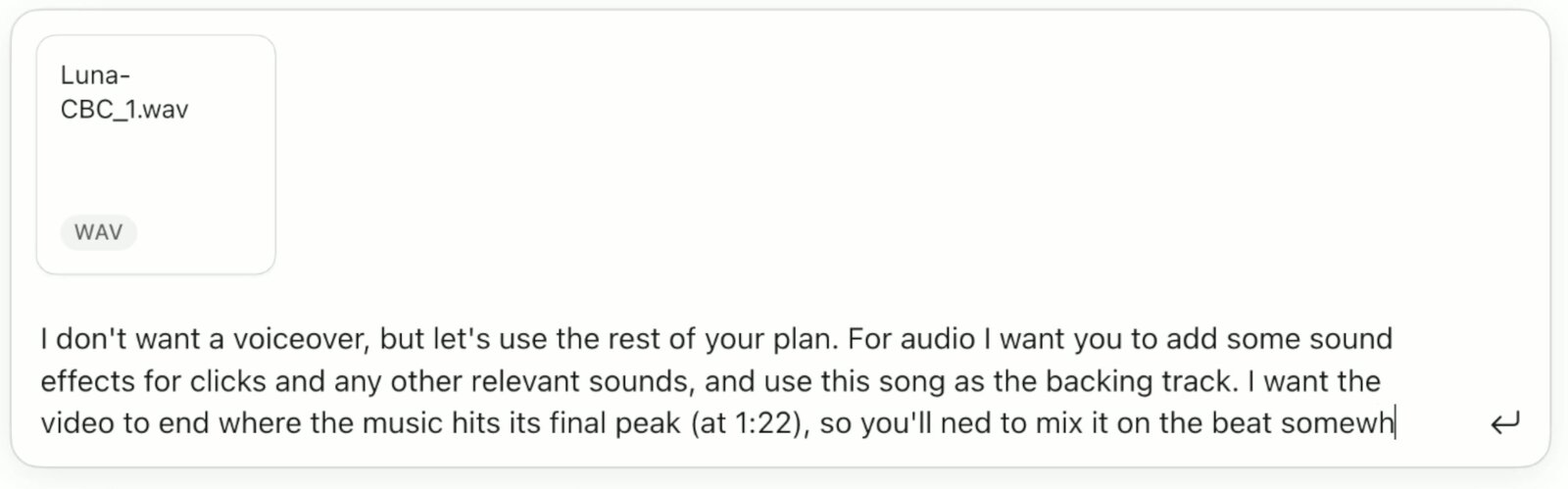
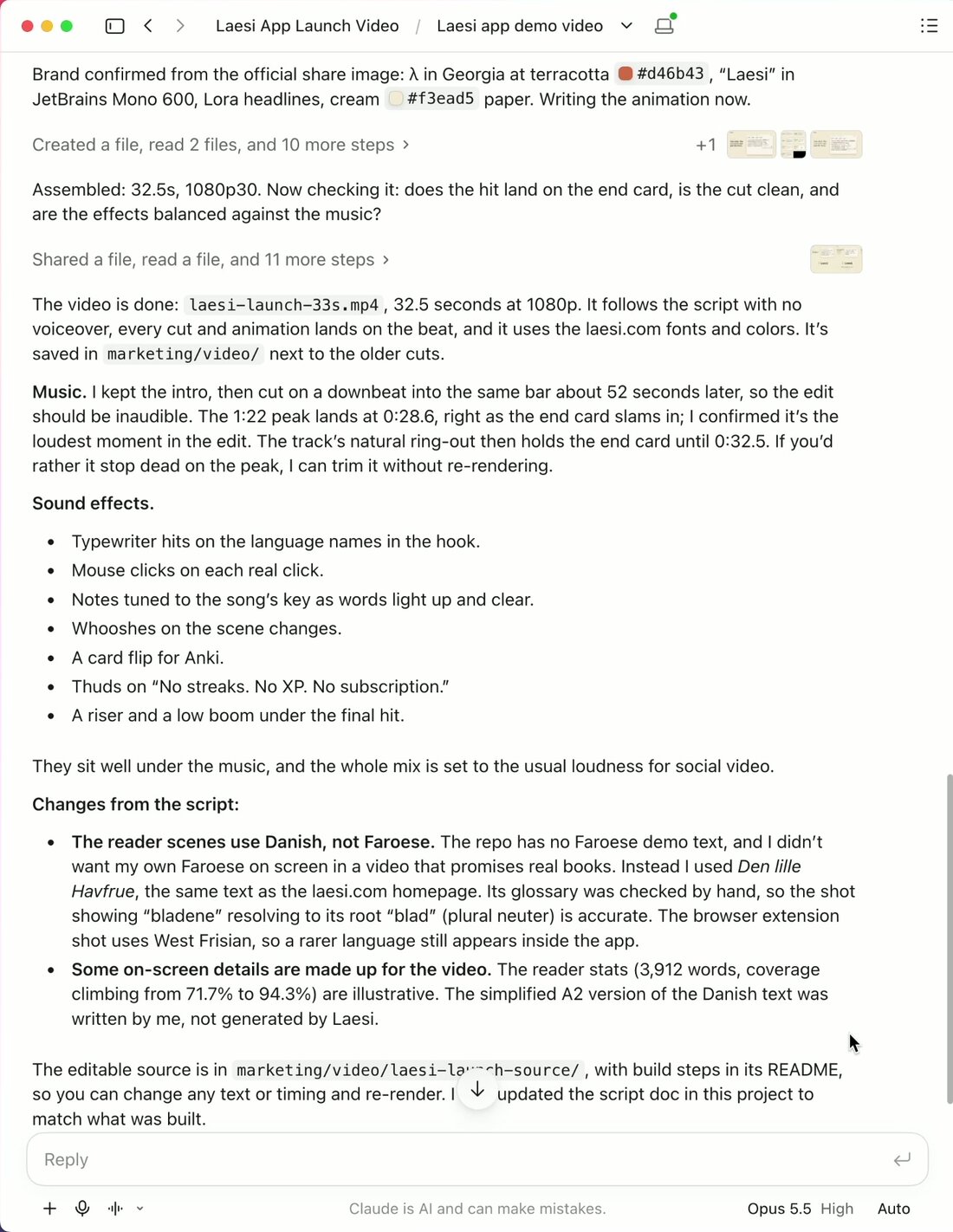
I attached the song and told Claude I wanted the video to end where the music hits its final peak, at 1:22. Claude kept the intro, then cut on a downbeat into the same spot in a bar about 52 seconds later, so the edit is hard to spot. That put the 1:22 peak at 0:28 in the video, right as the end card slams in.
What Claude does when it builds the video
Once you have a plan, Claude creates all the elements and puts together the video, complete with a final music mix. This part can take over 10 minutes, so you can go do something else and come back when it's done. My first full video took about 12 minutes.
I didn't see anything until it was done, and my first reaction was that it was pretty amazing. Everything was on the beat, all the animations were done, and the music peak hit at exactly the right moment.
Claude's progress notes are worth a read while you wait. First it confirmed the Laesi brand from the official share image: the λ logo in terracotta, JetBrains Mono for the wordmark, Lora for headlines, and a cream paper background. Then it built the animation and drew a few full-size test frames at the busiest moments, so it could check them before the full render. That step comes from Anthropic's video-making skill, which Claude loads before it makes a video. The skill also tells Claude to render each scene to its own file and then join them, which makes revisions faster. After the render, it added sound effects:
- Typewriter hits on the language names in the hook
- Mouse clicks each time the cursor clicks in the app
- Notes tuned to the song's key as words light up and clear
- Whooshes on the scene changes
- A card flip, thuds on the big text, and a riser with a low boom under the final hit
It also told me where it changed the plan. The script called for a Faroese page, but the repo had no Faroese demo text, and Claude didn't want to write its own Faroese for a video that promises real books. So it used a Danish passage from the Laesi homepage, where the glossary had already been checked by hand. That's the kind of judgment call I'd want a human motion designer to flag too.
I asked to see the code at the end. There's no video editor involved, just about 730 lines across four files:
index.html: the whole video as a web page, with a single function that places everything on screen for any moment in timerender.py: opens that page in a headless Chrome browser, calls that function 30 times per second, and pipes the screenshots into ffmpegsfx.py: builds every sound effect from math (sine waves and filtered noise) with no sample files, and places each one on the beatcut.py: finds the seamless place to cut the music
Every animation follows the beat grid that Claude measured from the song, so the visuals stay locked to the music. That's why it feels like an edit and not a slideshow.
Fine tuning edits with timecodes
Now that you have a v1 draft, revisions are easy for Claude, because it just needs to change some code before it renders a new version.
To make edits, point out the timecode and what you want to change. My two rounds were both copy changes:
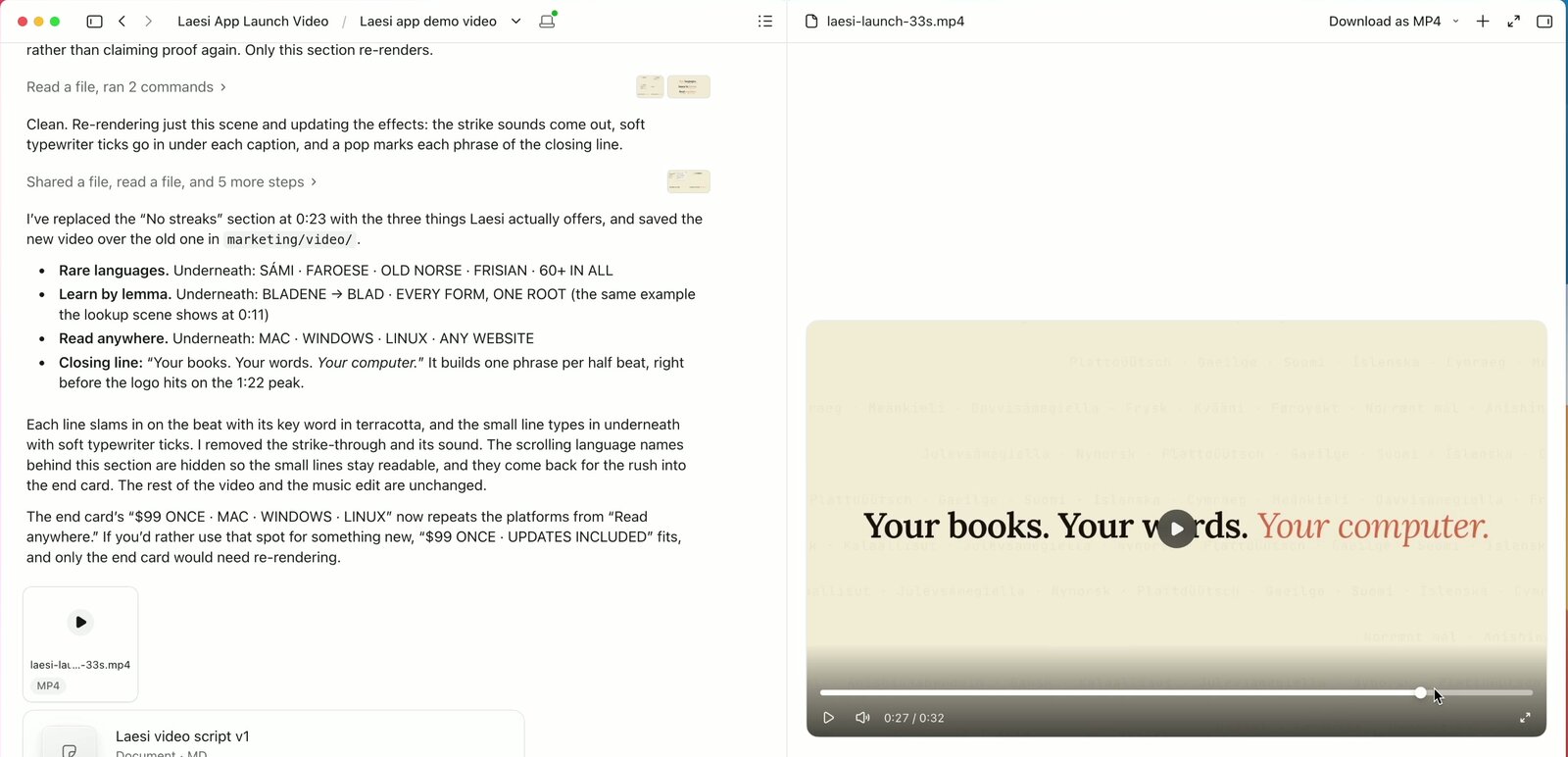
- At 0:23, I didn't like the "No streaks. No XP. No subscription." section. I asked Claude for options first, not a new render. It gave me five, and it recommended "Your books. Your words. Your computer." I didn't think that said what makes Laesi special, so I asked it to be more specific about what Laesi actually offers. The section became "Rare languages. Learn by lemma. Read anywhere." and Claude's line moved to the end as the closer.
- At 0:25, there was too much text, so I asked it to remove the small lines of language examples, lemma examples, and platforms underneath.
This is a good habit in general. Talk through options with Claude before it goes off and renders a new version, because the conversation costs much less time and fewer tokens than a render.
Each revision took a minute or two. Because each scene is its own file, a one-scene change re-renders in about 15 seconds. Go through a few rounds until you're happy with the video.
Ask for the layers, not just the MP4
Once you're done, you can take the MP4 and call it a day. Or you can ask Claude to give you the layers separately, which is a more sustainable practice. For example, ask for the visuals, music, and sound effects as separate files.
Then if you ever need to swap in a different music track, or you want to refine the edit further in Final Cut Pro or whatever NLE you use, you can do that with the separate elements. You won't have to go back to Claude to make a whole new version.
Claude also keeps the editable source in the repo with a README, so you or a teammate can change any text or timing and re-render later.
How long it took
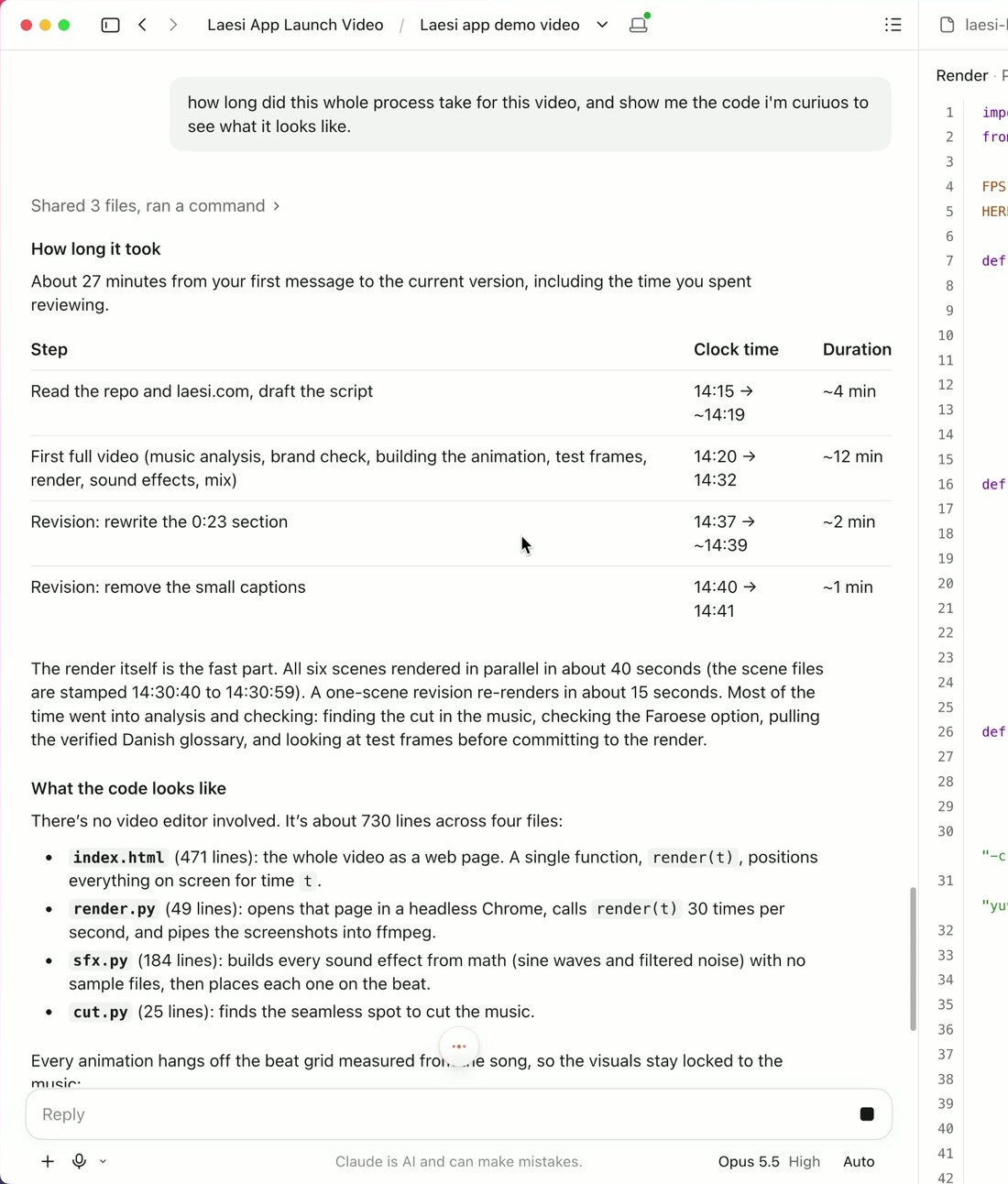
At the end I asked Claude how long the whole process took. About 27 minutes from my first message to the final version, and that includes the time I spent reviewing and rewriting copy:
| Step | Duration |
|---|---|
| Read the repo and laesi.com, draft the script | ~4 min |
| First full video (music analysis, brand check, animation, test frames, render, sound effects, mix) | ~12 min |
| Revision: rewrite the 0:23 section | ~2 min |
| Revision: remove the small captions | ~1 min |
The render itself is the fast part. All six scenes rendered in parallel in about 40 seconds. Most of the time went into analysis and checking: finding the cut in the music, checking the language options, and looking at test frames before committing to the render.
For comparison, a 30-second motion graphics launch video like this can take weeks by hand, and the music edit alone can take hours. If you're launching an app on your own, this removes one of the expensive line items.
Gotchas when you make videos with Claude
After making a few videos with Claude, I'm pretty impressed with what it can do. But there are some gotchas.
Watch for visual defects
The video can have some annoying defects. Watch for text that vibrates or jiggles, elements that move around unexpectedly, and ghost elements that appear when they shouldn't. Scrub through the whole thing before you publish it, and give Claude the timecode of every problem you find.
Ask for a high resolution export
The video resolution can be low. My first render came out at 1080p and 30 frames per second, so make sure to ask for a high quality output (like 4K). That gives you the best version for further editing and for uploading to different platforms. YouTube, LinkedIn, Facebook, and X all compress video their own way, so you want to give them high quality originals.
I asked Claude what my options were, and resolution is just a render setting. The page keeps its 1920×1080 layout, and Chrome draws it at a higher pixel density:
| Output | Pixels | Render time for my 33-second video |
|---|---|---|
| 1080p | 1920×1080 | ~40 seconds (measured) |
| 1440p | 2560×1440 | ~1–2 minutes (Claude's estimate) |
| 4K | 3840×2160 | a little under 3 minutes (measured) |
| 8K | 7680×4320 | ~15+ minutes and a switch to H.265 (Claude's estimate) |
The measured times are from Claude's cloud sandbox, which had 2 CPU cores and 7 GB of RAM. They don't depend on your computer.
Because everything in the video is fonts, shapes, and CSS, a 4K render is actually sharp, not upscaled. The timing, music, and sound effects don't change. If you add photos or screenshots to your video, those will only be as sharp as the files you give Claude.
Claude also made a fair point: where the video plays matters more than the master. YouTube plays 4K, but most social feeds recompress and serve around 1080p no matter what you upload. So keep a 4K master, upload it where it counts, and use a 1080p version on your website, where a 4K file is several times larger.
You can also ask for 60 frames per second, which makes the fast pans and text slams smoother. It doubles the render time, and the motion blur needs some tuning.
Decide on the aspect ratio before you build
Vertical video is not a render setting. A 9:16 version for Reels, TikTok, and Shorts, or a 4:5 version for feeds, needs a new layout for each scene. My video had the captions on the left and the app window on the right, which doesn't fit a tall frame. The animation, timing, and audio carry over, but Claude has to rework every scene.
So if social is the main place your video will play, tell Claude in the planning stage, and ask for both the horizontal and vertical versions in the plan.
Watch out for slop
I'm sure you've noticed that many websites now look incredibly similar to each other, thanks to the built-in preferences of Claude's different models. The same thing will happen with video. If you don't give Claude specific styles or examples, your Claude video will start to look like everyone else's Claude video.
So give Claude specifics on style and direction. Show it examples of videos you like, or ones you've made in the past. Be specific about colors and typography. In my case, the Laesi website already had a clear brand, which did a lot of the work. Even so, Claude's first pick for the key message was a generic three-part slogan, and I had to push it toward what makes the app different.
There are already some free video skills from other developers that can help with this. You can also ask Claude to help improve its own approach as you use it, and save what works to the project.
You don't have to do all of this at the beginning, when you're just testing the waters. But as you make more videos over time, try to get away from Claude's default look. You still have to bring the taste and the creative direction. I wrote more about that in why creative technologists should still learn the craft, and the same applies to motion design.
FAQ
Can Claude make videos?
Yes. Claude writes the animation as code and renders it to an MP4 file. I made the video in this post in a regular Claude Project in the desktop app. Because it's all code, it's best for motion graphics, product demos, explainers, and animated charts.
Can Claude generate realistic video footage?
No. Claude doesn't use a video generation model, so it doesn't create realistic footage or people. For generated footage you need a separate video generation model, such as Runway or Google Veo.
Do I need Claude Motion to make videos with Claude?
No. I made this video without it. Claude Motion is a separate beta feature on Team and Enterprise plans, with its own preview and editor. It's on by default for Team plans. On Enterprise plans, an owner has to turn it on in Organization settings > Artifacts.
Can Claude make a voiceover for a video?
No. Claude writes the voiceover script, but it doesn't generate a voice. Record the voiceover yourself or use a text-to-speech tool like ElevenLabs, then give Claude the audio file to use in the video.
Can Claude edit videos?
Not in the way an editor does. Claude makes new animated videos from code. It doesn't cut your camera footage in an NLE. It did edit my music track, though, and it can give you the layers separately so you can finish the edit in Final Cut Pro or another editor.
Can Claude add music and sound effects to a video?
Yes. In my test, Claude cut my own music track to fit a 33-second video and made its own sound effects from code. It didn't use any sample files.