
Claude in Chrome will bring automation to the masses
Automating your daily web-based tasks just became a lot easier with Anthropic's Claude in Chrome feature.
I can't decide whether to be happy about this progress, or worry about what will happen next.
Over the weekend I spent some time with this tool and am sort of surprised it's not being talked about more. This is the first time I've seen complex automation that anybody could create on their own, with a recurring schedule, all in the browser using natural language.
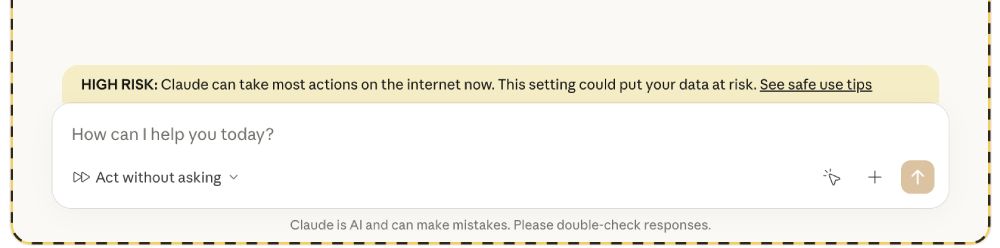
But before you jump in: be warned, giving Claude the ability to agentically interpret your instructions and take real-world actions in a web browser could go astray real quickly. Maybe watch the automation in the corner of your eye, just in case.
AI agents have a lot of power in making a plan and executing actions, and Claude with Chrome does have some safe guards (as well as these safety tips), but there's always a risk with them going astray.
Why Claude in Chrome versus Puppeteer, Selenium, Chrome Browser MCP, etc.
There are a few major reasons why Claude in Chrome is an improvement over other options we've had for browser tools up until now. Namely ease of use.
For Developers using Claude Code
I've tried just about every option for connecting Claude Code to a browser session for various tasks, and each has had flaws.
Claude Code's basic Fetch tool is fine for small browser requests, but it's not consistent nor has the ability to interact.
Selenium is great when you have very specific automation on static websites, and typically you'd ask Claude to write a Python script, test it, and repeat until you can reasonably depend on the script.
Puppeteer is better because it has more intuitive tools to find on-page elements and interact, and you can use an MCP to ask Claude Code to perform some interaction without having to write a script. For most CC users, Puppeteer has been the best approach.
But I personally don't like to use an MCP server for connecting to websites where I have to login, because I can't be sure my login credentials aren't being stored somewhere by the MCP server. And Puppeteer starts a new browser session every time it's called, so you can't login to a site in a browser before calling the tool using that same browser.
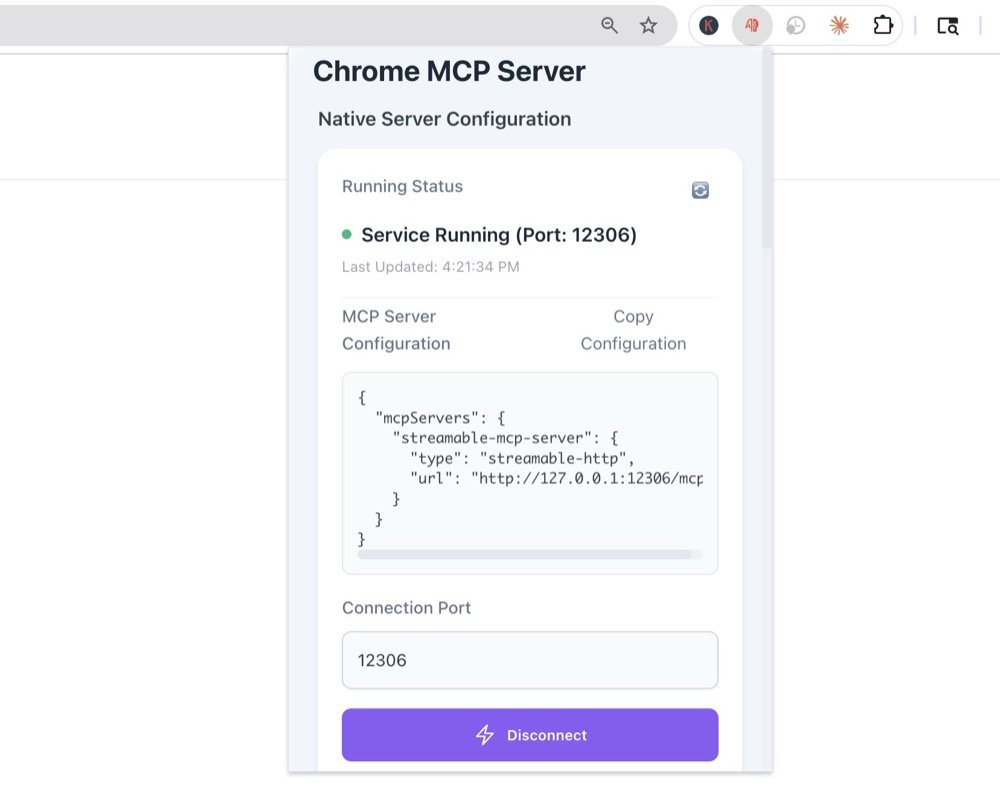
For that reason I've tried a couple different Chrome Browser MCP tools that connect to a local browser session. Selenium can do this too with a Chrome Debug session, but it's not as convenient because you typically have to close out of all your tabs before launching it.
The local Chrome MCP tools have worked ok - you have to install an extension, add the MCP to your Claude Code config, ensure the extension is connected, and away you go. But they have also been limited to the few tools they can call, which has made it so I can't do some things like save an image, instruct it to select text, etc.
Browser MCPs use a lot of tokens
One of the major reasons why developers have struggled with browser MCPs is because they use a ton of tokens.
So one of the most common desires - the ability for Claude Code to go to a web app you're developing, interact in some way, and then read the DevTools console - can kill your Claude subscription limits pretty quickly.
For that reason alone when I am tinkering with a web app I still end up copying/pasting console logs, taking screenshots and pasting them into CC, and in general avoiding browser MCPs unless they are used for going out and fetching something.
How Developers can use Claude in Chrome now
Now with Claude in Chrome it's much, much easier to call a local browser session from the CLI. You don't need to write a Selenium script or open a Chrome Debug session, you don't need to worry about your login credentials going to a Puppeteer MCP server, and you can stay within the CC environment rather than installing another local Chrome MCP.
Most of all, you can be completely free to instruct it to perform actions, without being limited to certain MCP tools.
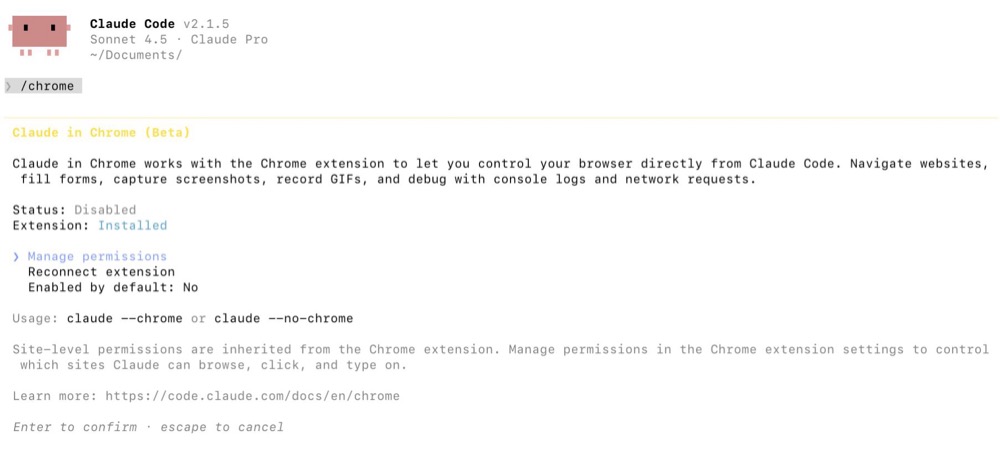
All you have to do is install the Claude in Chrome extension and login to your Claude account. Now in the CLI, you can call claude --chrome and begin providing instructions. Or alternatively, if you're inside Claude already, type /chrome to manage the settings. There's an option to enable the Chrome connection on by default, so you don't need to start a session with the --chrome flag.
For Non-Developers, Claude in Chrome is almost too easy
I'd say for most non-developers, no matter how many tutorials there are out there for automating with N8N, Make, Zapier, PowerAutomate, desktop apps, even Claude's own MCP integrations . . . Automating rote tasks is still way out of reach.
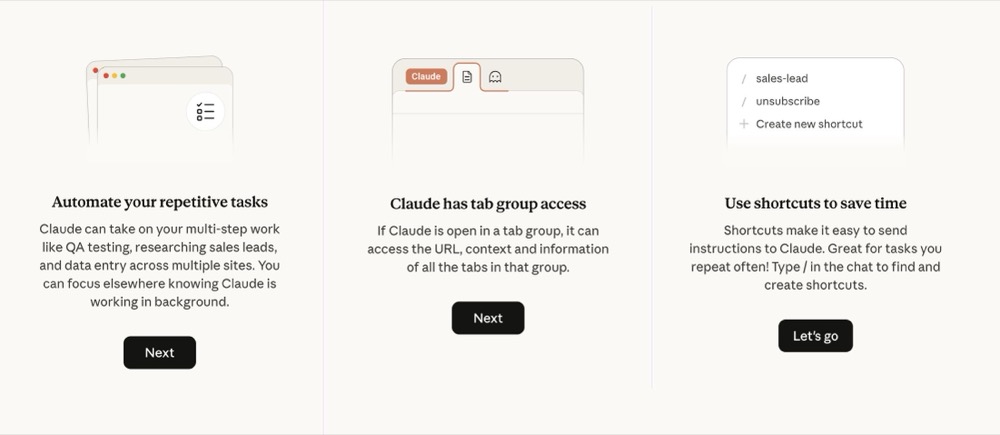
Not so with Claude in Chrome. Now you can open up the browser extension and start typing what you want it to do.
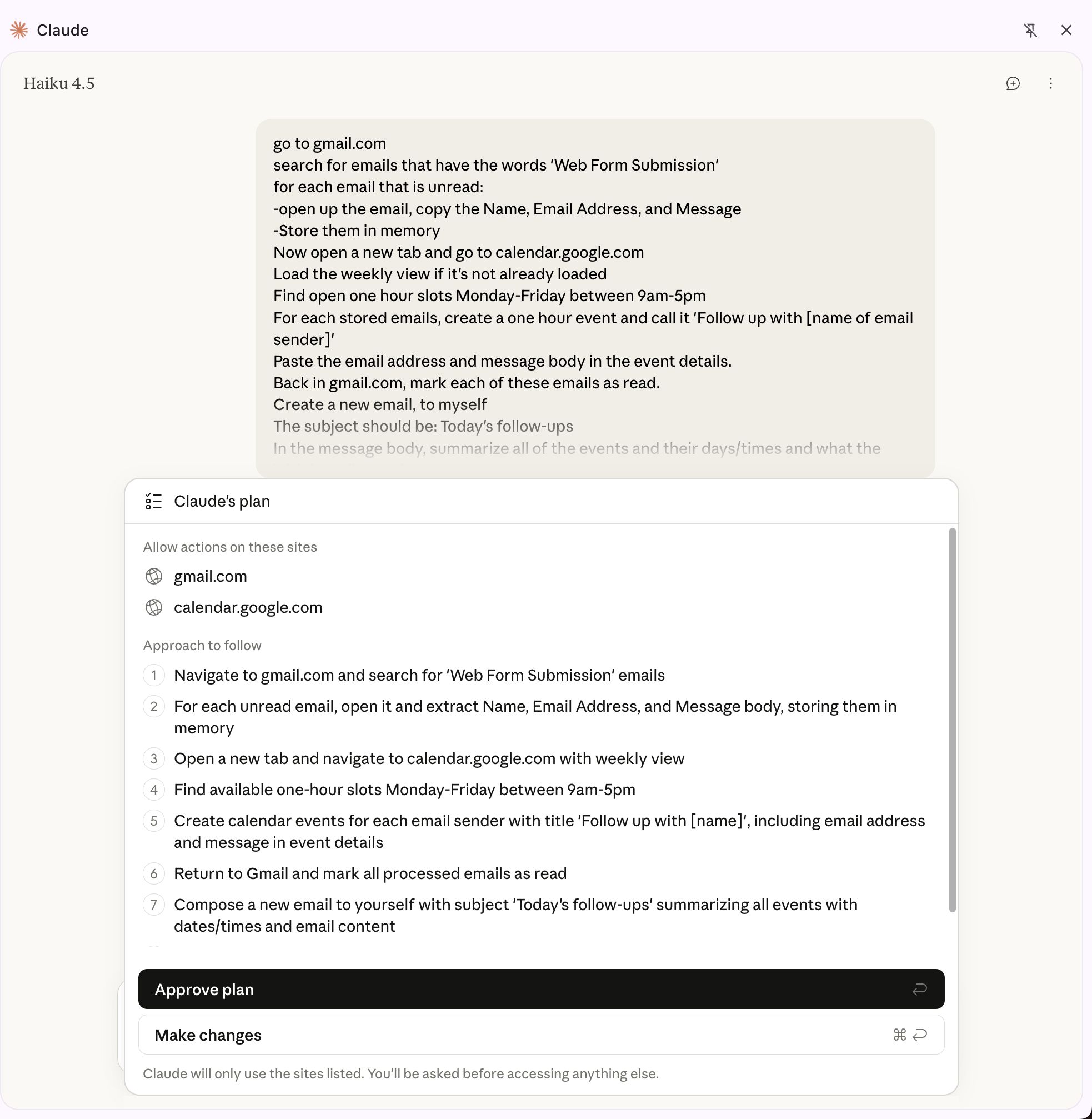
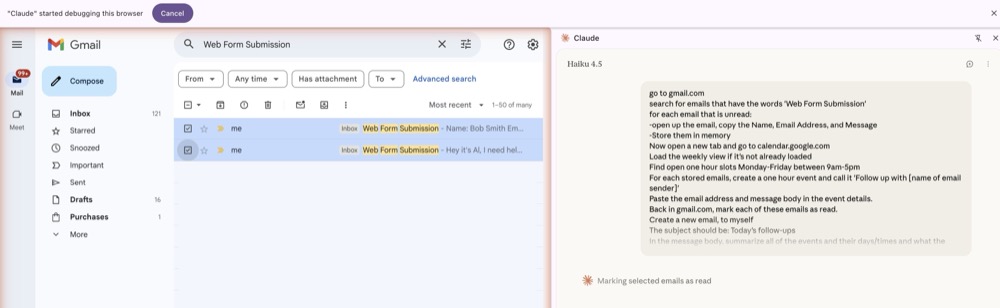
For example here's one I typed into the extension and then watched my browser perform the full automation flawlessly.
Go to gmail.com
Search for emails that have the words 'Web Form Submission'
For each email that is unread:
-Open up the email, copy the name, email address, and message.
-Store them in memory.

Now open a new tab and go to calendar.google.com
Load the weekly view if it's not already loaded.
Find the first open one hour slots Monday-Friday between 9am-5pm
For each of the stored emails, create a one-hour event and call it "Follow up with [name of email sender]
Paste the email address and message body in the event details.

Back in gmail.com, compose a new email to myself.
The subject should be: Today's Follow-ups
In the message body, summarize all of the events and their days/times and what the initial email was about.
Click send.
Take a moment to reflect on how easy that was. This is how people talk when they envision their automations. But even with AI agents who have replaced some robotic automation, we still have to treat an automation flow like the above example as a careful, step-by-step computer program with authentication, APIs, MCPs, memory, error handling, triggers, and so on.
Scheduling recurring automation shortcuts with Claude in Chrome
Instructing Claude in Code to take over your browser while you watch is pretty cool, but how is this 'automation'?
Once you're happy with guiding Claude through a particular task, you can convert it into a 'shortcut'. Now you can schedule a particular time to run it, or on a recurring schedule.
As long as your computer is on and Chrome is open (with the Claude extension enabled), you now have automated tasks in your browser.
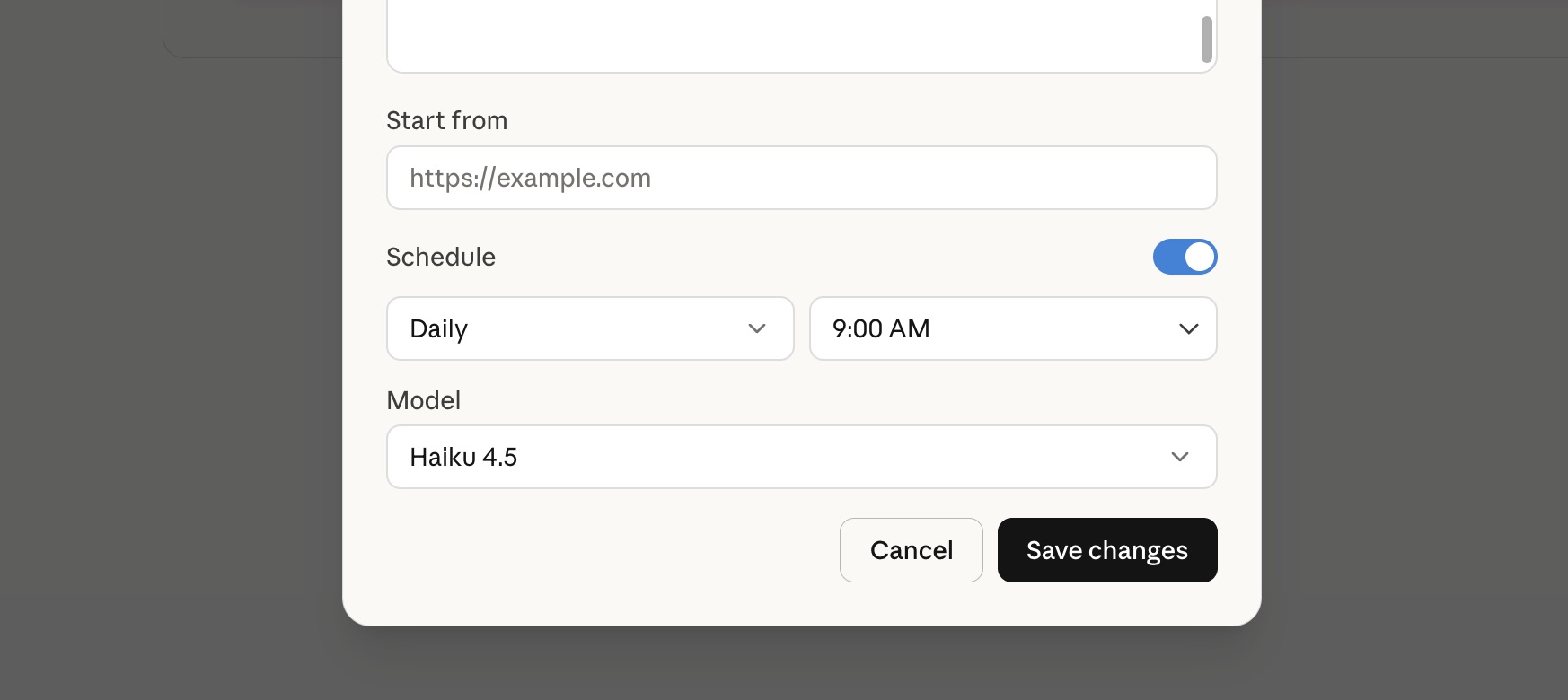
There's also an option to set a website as the starting point. So you can choose a login page and in your shortcut just say 'the login credentials will autofill'. Or don't say anything at all, and let Claude figure it out.
This is the first time I've come across anything related to automation where I thought, 'I could show my friends and family how to do this.'
Before, anytime I would talk to someone about automation, and they asked if I could make something for them, I would say 'Yes maybe but we would need to subscribe to a paid web app and then connect to your work accounts and that might require your IT department add some permissions.' That would usually kill the conversation before we proceeded any further.
Teach Claude in Chrome with Recorded Demos
In addition to the natural language prompt, the browser extension also has a 'Teach Claude' feature. Once you enable your microphone, you can then walk through steps while narrating what you're doing.
In the extension sidebar you can see little gifs being created as you're teaching. Once you're done, Claude will convert your demo into a shortcut, and you can preview the instructions before saving or cancelling.
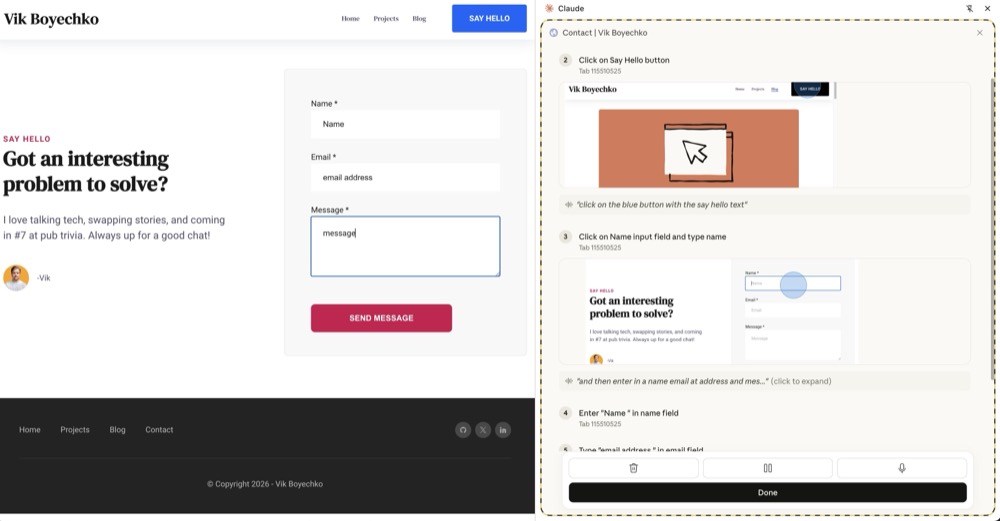
This is pretty rad but in my experience it's not quite fleshed out yet. But, if you keep your instructions very short, it is actually useful to record a short demo, and then copy the generated prompt into a text file as you're building out a master script for what to do.
As you can see in these generated prompts from recordings, the instructions are quite detailed. Click on the blue button to the right side of the 'Cancel' button. It has the words 'Save' in white text. It appears on the top right of the screen. Once you see a few of these, it probably is not necessary to copy/paste them anymore, as you'll instinctively begin to learn how to write a detailed instruction for what to do on screen. Using natural language.
How does it work? And why the Haiku model?
Unlike browser automation that relies on locating elements in the DOM, Claude in Chrome takes a ton of screenshots as it's figuring out what to do next. In this way, you can tell it to make the meeting one hour long and it will look for ways to do this, eventually finding the dropdown to select the length of the meeting.
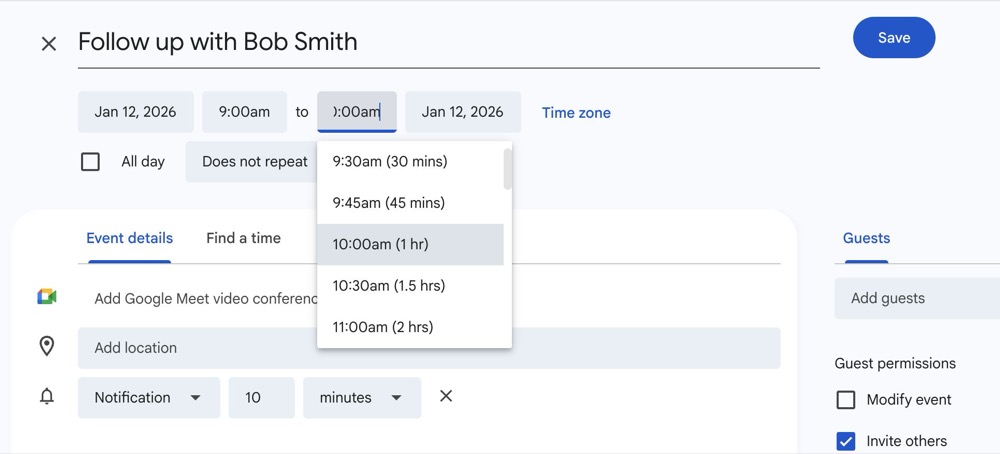
This will use a lot of tokens, which is probably why Claude in Chrome only uses the Haiku model, which uses the least amount of tokens compared to Sonnet or Opus. But if you call the extension via CLI, you can use whatever model you want.
Still, if you're experimenting as a developer on a $20/month Claude plan, I would stick with the Haiku model when starting Claude Code, like this claude --chrome --model haiku.
Another thing to point out is Claude in Chrome automations are going to be way slower than traditional automations due to all of these screenshots, UI interactions, and LLM reasoning. So if you're thinking about using this to perform hundreds of actions a day, well, it's early yet.
Can you use Claude in Chrome with N8N?
After the initial awe of building some shortcuts using the extension, I started to experiment with N8N flows that called Claude in Chrome. In this way, you could setup triggers and variables, add other action nodes, and overall have more control on the recurrance rather than relying on the extension itself.
For example, I created a simple form with some URL inputs, and on submit it called a local N8N flow via a webhook, which then told Claude in Chrome to visit those links and perform some actions.
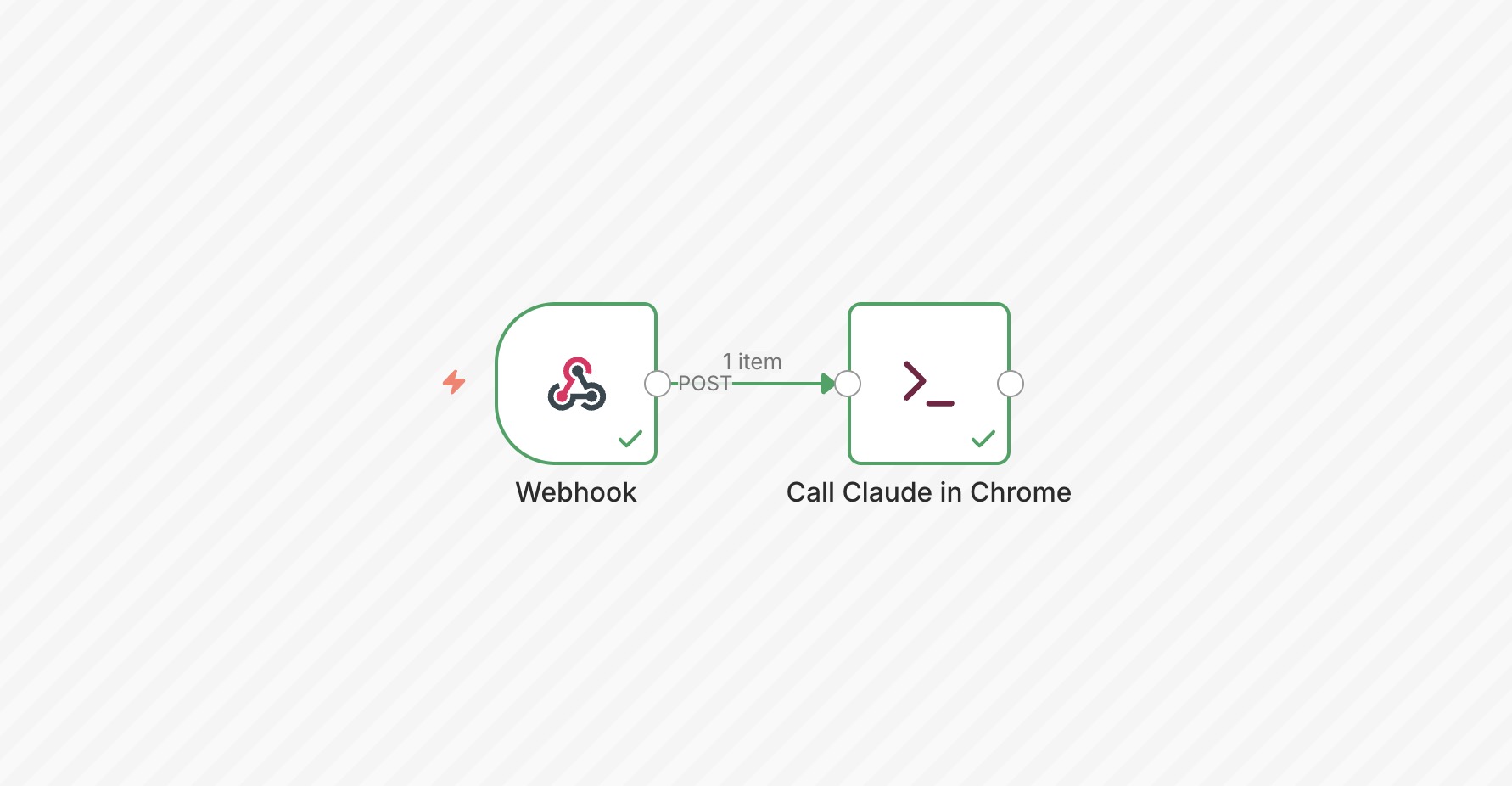
But I still have a lot to experiment with. For example, figuring out if putting the entire automation instruction into N8N is better than asking Claude Code to execute a shortcut saved to the Chrome browser. For a large automated flow, you wouldn't want Claude Code to stop midway to ask for clarification or if you want it to continue, since you're not watching the output, so what's the best way to ensure this?
There's a lot more to play with, but it's going to be an amazing year in automation. I am already thinking about small rote tasks that I would never spend the time to setup in N8N, half done projects that failed due to browser MCP limitations, and what I'm going to say when a friend or family member asks me to help automate something.